GIF Maker, GIF Editor
- 4.7
- Rating
- 10.00M
- Installs
- Free
- Price
 Analysis by App-foxy
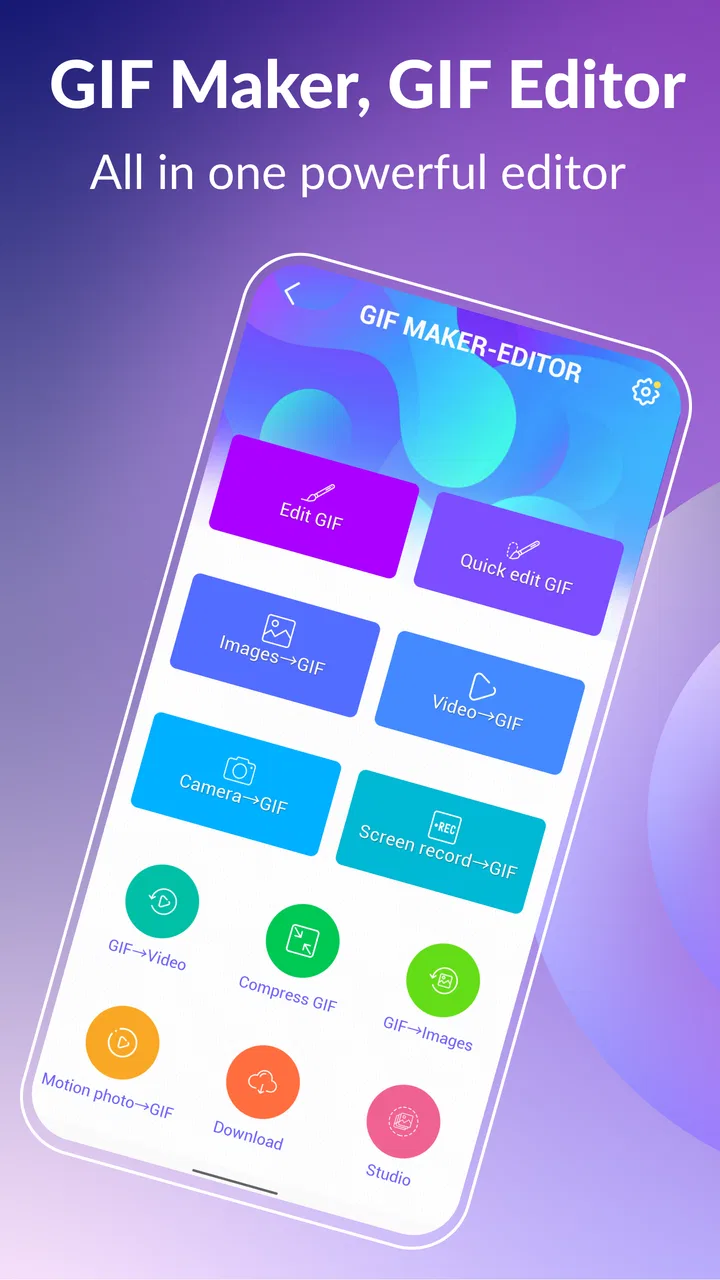
GIF Maker, GIF Editor is the kind of photography app I open when a still image feels too limited and a full video editor feels like unnecessary work. It turns photos and video clips into animated GIFs, and the process is much more approachable than building an animation from scratch. I found it especially useful for quick reactions, short demonstrations, looping social posts, and small visual jokes that do not need sound or a long timeline.
The app is free to install, aimed at Everyone, and developed by GIF Maker & GIF Editor & Video Maker. Its popularity is easy to understand: it has passed 10 million installs, holds a 4.7 average from around 337 thousand ratings, and has about 9.9 thousand written reviews. Those figures suggest that it has found a broad audience, but they do not remove the need to look at how it actually fits into a daily workflow.
How GIF Maker, GIF Editor feels in current use
My first impression was that the app is built around speed rather than professional post-production. You choose whether to work from images or video, bring the material into the editor, arrange the sequence, and adjust the result before exporting. That straightforward approach is its biggest strength. I do not need to learn a complicated timeline just to make a short loop from a handful of pictures.
You May Also Like

 Google Keep - Notes and lists
Google Keep’s Quiet Growth Shows the Appeal of Simpler Notes
As mobile work gets busier, Google Keep keeps winning a simple contest: capture a thought quickly, find it later, and get on with the day.

 Blood Strike: 2.5 Anniversary
Blood Strike’s Loadouts Turn Every Drop Into a Tactical Gamble
A close look at Blood Strike’s custom loadouts: how fast access to signature weapons reshapes its battle royale rhythm, rewards preparation, and narrows the gap between fights.

 Pandora - Music & Podcasts
Pandora’s Music Is Easy to Start, but Harder to Recover
Pandora’s strength is its low-effort path from a seed to a station. Its weak spot is how much confidence it asks you to place in connection, setup, and quiet recovery.

 8 Ball Pool
 Is Built on Rivalries, Rematches, and Routine
A close look at the rivalries, rematches, shared routines, and unanswered safety questions that turn a quick pool match into a persistent mobile community.

 Samsung Music
’s Quiet Strength Is Playing What You Already Own
Its reach comes less from spectacle than from dependable access to a personal library. That simplicity is both the app’s strongest retention engine and its ceiling.

 AccuWeather: Weather Radar
AccuWeather Review: A Quick, Clear Forecast for Everyday Decisions
For everyday plans, the best forecast is the one you can understand quickly. AccuWeather makes rain timing, radar, and local conditions easy to act on, with a few trade-offs.
More From Our News Desk



The app also makes sense for people who think visually but do not want to deal with technical animation tools. A parent can turn a series of photos into a playful loop, a small seller can show a product from several angles, and a student can make a short visual explanation from screenshots. In each case, the useful result is not a cinematic production; it is a compact animation that communicates one idea quickly.
The strongest reason to use this app is the short path from ordinary media to a shareable loop. That matters when the source material is already on your phone and the goal is simply to make it move. Compared with using a general video editor, I spend less time searching through tools that do not apply to GIF creation.
Starting with images instead of video
Image-based GIFs are where the app feels most comfortable. I can select several photos, put them into an order, and treat the sequence like a flipbook. This works well for before-and-after comparisons, step-by-step instructions, outfit changes, travel snapshots, or a simple slideshow with a repeating rhythm.
A useful habit is to choose images with a similar framing before importing them. If one photo is a close-up and the next is a wide shot, the transition can feel abrupt even when the app is working correctly. Cropping or preparing the images first usually produces a cleaner loop than trying to fix every inconsistency after the sequence is assembled.
The order of the images also changes the meaning of the animation. For a reaction GIF, I would place the neutral expression first and the exaggerated one last. For a process, I would check the sequence twice because a single misplaced image can make the action appear to go backward. This is a small detail, but it is one of the differences between a GIF that feels intentional and one that looks like a random slideshow.
Turning video clips into shorter reactions
Video conversion is more useful when I already have a moment worth isolating. Rather than sending a complete clip, I can focus on the short section that contains the expression, gesture, or action I want to repeat. That makes the result easier to share and keeps the animation focused.
This workflow is particularly handy for messaging. If a friend sends a long clip and I want to turn one funny moment into a reaction, a dedicated GIF tool is more direct than opening a full video editor. The trade-off is that GIFs are silent and can become large when the source is long or visually busy, so I would keep the selected moment brief and avoid treating the app as a replacement for video sharing.
For tutorials, I would use video conversion differently. A short screen recording can become a looping demonstration of a button press or gesture. The best results come from removing pauses and unnecessary movement before exporting. A GIF should show the action almost immediately; otherwise the viewer may assume it has stopped.
Editing decisions that make a bigger difference than expected
Timing is more important than adding decoration. When each image remains visible for too long, the animation feels sluggish; when frames change too quickly, details disappear. I recommend testing the loop several times and judging it at the speed a recipient is likely to see, not only while editing it on a large screen.
Loop design is another overlooked issue. A sequence that ends with a frame visually close to the first frame can repeat smoothly. If the last image is dramatically different from the opening image, the jump back to the beginning becomes obvious. For a product rotation or gesture, arranging the frames so the ending leads naturally into the start can make the same material feel much more polished.
I also found that simple source material often beats ambitious source material. A few clear images with one subject usually create a more readable GIF than a crowded collection of photos. This is not a limitation of the editor alone; it is a limitation of the format. GIFs work best when the viewer understands the point without needing sound, captions, or a long explanation.
What the no-watermark approach changes
The app’s store summary emphasizes creating GIFs without watermarks, and that is meaningful in practical use. A visible brand mark can be distracting in a personal reaction, awkward in a classroom example, or unsuitable when a small business wants to present its own content. Removing that extra visual element makes the exported result feel more like the user’s own work.
That does not automatically make every export professional. A clean canvas can still contain poor cropping, inconsistent images, or an awkward loop. I see the watermark-free result as a useful baseline rather than a guarantee of quality. It removes one common annoyance, while the user still has to make sensible choices about source material and timing.
Development, changes, and the experience for existing users
The app was released on August 2, 2017, so it has had time to establish a clear identity as a focused GIF-making tool. Its current position is not that of a new experimental editor trying to cover every kind of media. Instead, it remains centered on a familiar task: converting images and video into animated content with a relatively approachable workflow.
That long presence can be reassuring for someone who wants a dedicated utility rather than a short-lived novelty. At the same time, an older app has to keep pace with changing phones, larger camera files, and modern expectations around sharing. I would judge it primarily by whether it gets the basic job done without making a simple project feel like a technical exercise.
The developer name, GIF Maker & GIF Editor & Video Maker, reflects that focused direction. The product is not presented as a general photography suite with dozens of unrelated tools. Its value comes from staying close to animated image creation, which helps explain why it feels more direct than many all-purpose editing apps.
For people who already use it, the main benefit of that focused design is continuity. A familiar workflow is valuable when the task is occasional but urgent: a quick reaction for a chat, a looping announcement for a community page, or a visual example needed before a meeting. I would rather use a tool I understand immediately than spend time relearning a larger editor for a small result.
There is also a practical difference between an app intended for making GIFs and the built-in conversion options found in many gallery or messaging apps. Those alternatives can be convenient for a single automatic conversion, but they often give less room for deliberate ordering and refinement. GIF Maker, GIF Editor makes more sense when I care about choosing the exact images, selecting the useful part of a clip, and checking the loop before saving.
Where it fits beside video editors and social tools
A full video editor is the better choice when I need sound, layered titles, detailed transitions, color correction, or a longer narrative. I would not begin a serious travel montage or a polished promotional video here. The app’s advantage is that it avoids the overhead of those tools, while its weakness is that it is not designed to replace them.
Social media editors can be faster when the final destination is a particular platform and I want its built-in stickers, music, or templates. However, those editors often keep the project tied to the platform’s publishing flow. A standalone GIF tool is more useful when I want a file I can reuse in different conversations, documents, or websites.
Online GIF converters can also be convenient, especially on a computer, but they require uploading media and working through a browser. For private family clips, workplace screenshots, or anything I would rather keep on my phone, an app-based workflow feels more comfortable. I still recommend checking the final file before sharing, because compatibility and file size can matter more than the editing screen suggests.
Limitations I would consider before installing
The simple workflow can become restrictive when a project grows. If I want fine control over individual visual elements, complex layers, or a carefully designed title sequence, I would move to a more advanced editor. The app is strongest when the content itself is already nearly finished and only needs to be arranged into a loop.
GIF is also an inherently limited format. It has no sound, and a visually detailed animation can become heavy compared with a short video. That means the app is not always the best answer for preserving camera quality. If the goal is to show subtle motion, speech, or high-detail footage, sharing the original video may be clearer and more efficient.
Another point is the learning curve around quality rather than buttons. The controls may be approachable, but good results still depend on choosing consistent source images, trimming video thoughtfully, and testing the repetition. Someone expecting an automatic “make everything perfect” button may be disappointed. The app simplifies production; it does not replace editorial judgment.
The app is free, with in-app purchases listed at $1.99 per item. That makes it easy to try before deciding whether the available free workflow is enough. I would pay attention to the moment an optional purchase appears and decide based on how often I create GIFs. For occasional personal use, the free entry point is attractive; for frequent work, the value depends on whether the paid options solve a real problem in my routine.
Everyday workflows where it earns a place
One realistic example is a small online seller preparing a product post. I would take several photos showing the item from different angles, select the clearest sequence, and create a short loop that reveals the details one by one. The result can be more noticeable than a single photo while remaining easier to produce than a full promotional video.
Another is a teacher or trainer showing a repeated phone gesture. I would record the action, isolate the useful section, and turn it into a silent loop that can be inserted into instructions. The loop should begin close to the action and end in a way that makes the return to the first frame understandable. This is more useful than sending a long recording where the viewer has to search for the important moment.
For personal memories, I would use the image workflow for a small set of related photos rather than an entire album. A handful of pictures from a meal, a pet’s expression, or a weekend activity can create a compact keepsake. Keeping the selection narrow gives every frame a reason to be there and prevents the animation from becoming a slow catalogue.
For messaging, I would create reaction GIFs from short clips and avoid adding too much visual information. The recipient should understand the emotion even if the GIF is viewed without context. This is where the app feels more useful than a standard photo editor: it helps turn a moment into a reusable response rather than merely adjusting a still image.
Questions I would settle before relying on it
If you are wondering whether it can work from both photographs and video, that is one of its central purposes. I would choose the source based on the job: multiple images for a controlled slideshow or process, and video when the important moment already exists as motion. The better option is whichever gives you fewer unnecessary frames to manage.
If you are concerned about branding on the output, the app is specifically presented as producing GIFs without watermarks. That is helpful for clean personal sharing and basic business use. I would still review the finished animation for framing and readability, because the absence of a watermark does not correct weak source material.
If you are deciding whether it is suitable for children, its Everyone content rating makes it broadly accessible. Even so, I would guide younger users through media selection and sharing choices, especially when the source includes other people. The age rating describes the app’s content category, not every possible situation created with it.
If you are asking whether it can replace a professional editor, my answer is no. It is a focused GIF utility, not a complete production environment. Choose it when you want a quick animated image; choose a video editor when sound, detailed composition, or a longer sequence matters more than speed.
If you are unsure whether the paid items are necessary, I would begin with a small project and see whether the free experience covers your normal needs. Since the app is free to install and optional purchases are priced at $1.99 per item, there is little reason to commit before testing the workflow with the kind of photos or clips you actually plan to use.
What I would watch as the app continues
For an established tool like this, I would watch how well it handles the changing size and quality of phone media. Modern photos and recordings can contain more detail than a GIF needs, so efficient selection and sensible export behavior are important to the overall experience. A smooth editor is helpful, but the saved result must also remain practical to share.
I would also look for continued attention to the balance between simplicity and control. Adding options can help experienced users, but too many controls could undermine the reason people choose a dedicated GIF app. The best direction would preserve the quick image-to-loop workflow while making advanced adjustments available without forcing every beginner through them.
Existing users should also pay attention to whether their preferred workflow remains dependable after updates. If you create GIFs for work or regular social posts, keep a copy of important source media and check exports before deleting anything. That is sensible practice for any editing app and especially useful when a project cannot easily be recreated.
My recommendation after using it
I recommend GIF Maker, GIF Editor to anyone who wants a straightforward way to turn photos and short video moments into looping images. Its free starting point, Everyone rating, large user base, and clear focus make it approachable, while the watermark-free output removes a common frustration. I especially like it for quick reactions, visual instructions, small product showcases, and compact personal memories.
I would skip it if your real goal is a polished video with audio, complex layers, or detailed cinematic control. I would also avoid using GIF as the default format for every recording, since a short video can preserve motion and detail more effectively. The app works best when the limitations of GIF are part of the plan rather than an unpleasant surprise.
For me, the deciding advantage is not a long list of effects. It is the ability to take media already on my phone, make a few deliberate editing decisions, and end with a reusable animation without a watermark. That focused experience is why I would keep it installed for those moments when a still photo is too static and a full editor is far more than I need.
FAQs for GIF Maker, GIF Editor
01What is GIF Maker, GIF Editor used for?
GIF Maker, GIF Editor is designed for creating animated GIFs from photos, videos, screen recordings, and sometimes existing GIF files. After importing your content, you can usually trim clips, arrange frames, adjust speed, add text or stickers, apply effects, and export the finished animation. It is useful for social media posts, messaging, reaction images, short tutorials, and simple promotional content.
02Can I create a GIF from a video or multiple photos?
Yes, the app generally supports both common creation methods. You can select a video and cut out the exact section you want to convert, or choose several photos to build a frame-by-frame animation. During testing, the editing workflow is most convenient for short clips and small image collections. Longer videos or many high-resolution photos may require additional processing time and storage space.
03Does GIF Maker, GIF Editor work without an internet connection?
Many of the core editing tools can be used offline after the application has been installed, particularly when working with media already saved on your device. However, internet access may be needed for advertisements, online templates, cloud features, content sharing, or downloading extra effects. Availability can vary by version, so users should check the app’s permissions and feature descriptions before relying on it offline.
04Can I edit an existing GIF and save it without losing quality?
The app can typically import an existing GIF and let you crop, resize, rotate, change playback speed, add captions, apply filters, or remove selected frames. The final quality depends on the original file, the chosen dimensions, frame rate, and export settings. Repeated editing and resizing may reduce sharpness, while very large GIFs can produce bigger files or take longer to save.
05Is GIF Maker, GIF Editor free to download and use?
The application is generally available as a free download, but some versions may include advertising, optional in-app purchases, or premium tools. Basic GIF creation and editing are often accessible without payment, while advanced effects, higher-quality exports, watermark removal, or additional templates may be restricted. Before downloading, review the current store listing and subscription details to understand exactly what is included.
Pros
- Converts videos and photos into GIFs quickly.
- Supports trimming
- cropping
- resizing
- and speed adjustments.
- Includes text
- stickers
- filters
- and drawing tools.
- Lets you preview edits before saving or sharing.
- Useful for creating custom reaction GIFs and memes.
Cons
- Some advanced tools may require in-app purchases.
- Export quality can vary depending on the original media.
- Large GIFs may take extra time and storage to save.
- The interface may feel crowded for first-time users.
- Ads can interrupt editing in the free version.

GIF Maker, GIF Editor
Gallery